

Buying a second-hand Apple Silicon MacBook (M1, M2, M3, M4 series) can save you a lot of money, but it also comes with risks. Before you seal the deal, it’s important to check certain things to ensure you’re getting a good device without hidden problems. This guide will cover everything you need to look for..
Note: macOS interface and settings may vary slightly with each new update. The steps mentioned here are based on the latest macOS version at the time of writing. If you can’t find a specific option, use the Search bar in System Settings to locate it.
Key Points to Remember:
- Inform the seller in advance that you’ll need at least an hour to thoroughly test the MacBook.
- Request the seller to update the MacBook to the latest macOS before your meeting.
- Clearly state that you plan to reset the MacBook in their presence to verify there’s no Activation Lock.
- Ensure the location has a Wi-Fi connection—this is essential for updates, resets, and verification steps (no exceptions).
- Ask upfront if the seller has the original purchase invoice.
- Check whether they are providing the original charger and cable, as these add value to the deal.
1. Verify the Model and Year
It’s also a good idea to ask the seller for the original purchase invoice—a soft copy will do if the physical one isn’t available. The invoice typically includes the serial number and purchase date, which will help you confirm the device’s authenticity and check warranty coverage. This will also be important for another reason we’ll discuss later in this guide.
1. To Verify Serial No and Model, Click on Apple menu (Apple Icon on the Left) > About This Mac.
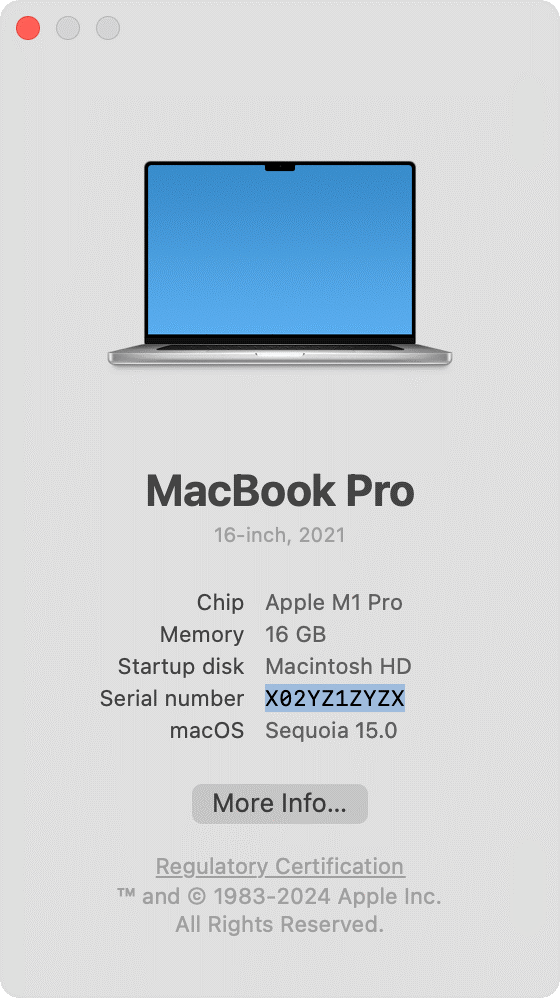
2. Copy the serial No.
3. Go to Apple Service Coverage Website > Paste the Serial No.
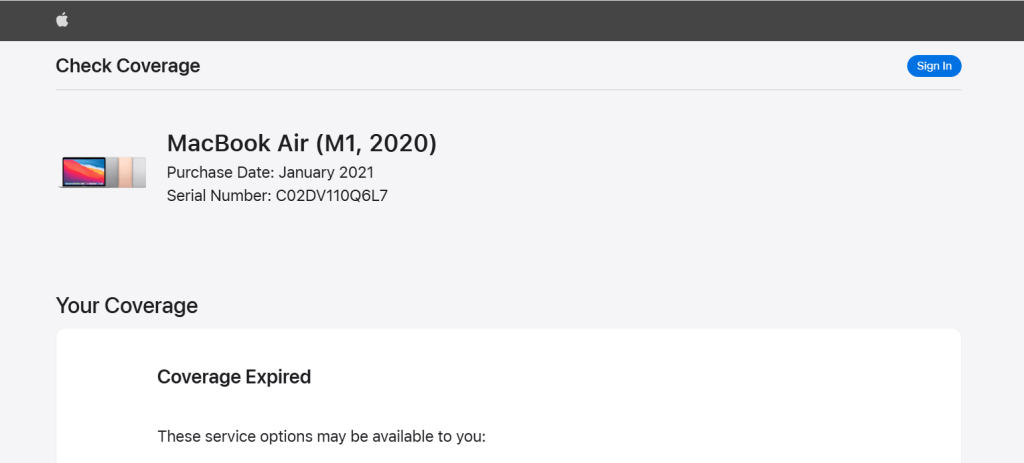
4. See if it matches on the apple site (Check the Model, release year, screen size and Purchase Date).
5. You’ll also know if the MacBook is still under limited warranty or AppleCare+, which adds extra value.
6. Lastly, compare the details with Apple’s official site and invoice (if available) to confirm authenticity.
2. Inspect Battery Health
Battery health is a crucial factor when buying a used MacBook. If there is any issue with the battery get ready for Apple to charge you approximately ₹15,000 for a battery replacement, so factor this into the price before finalizing the deal.
1. Hold the Option key and click the Apple menu (Apple Icon on the Left), then choose System Information.
2. Under the Hardware section of the System Information window, select Power.
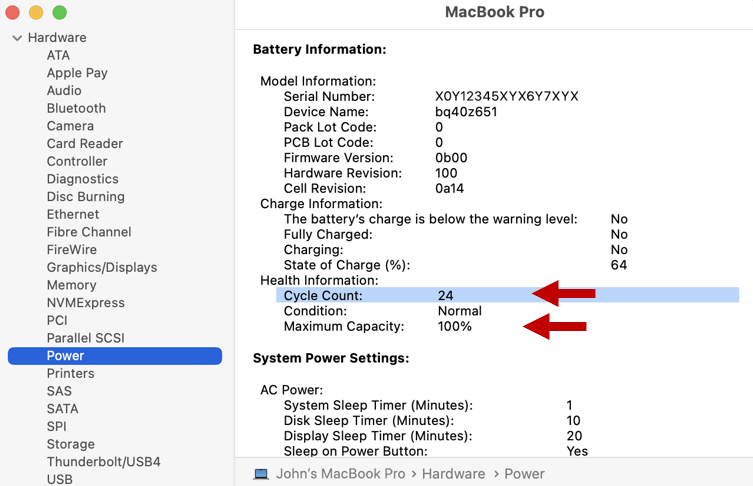
3. Make sure the Cycle Count to be lower than 180/200 (Apple Silicon MacBooks generally have 1000 cycles lifespan).
4. The Condition should say Normal (If not, consider the cost of replacing the battery).
5. The Maximum Capacity should be above 90% (If it Under 80%, you would need to replace the battery).
6. If either the cycle count is excessively high or the capicity is lower than 90%, use this as a negotiation point with the seller.
3. Storage & Memory Verification
1. Click on Apple menu (Apple Icon on the Left) > About This Mac.
2. Click on More Info.
3. Scroll down and you will find the storage & Memory capacity.
4. Check Physical Condition
A. Outer-Body Check
1. Inspect the Laptop outer shell for any dents, scratches or blemishes (If there are, use this as a negotiation point with the seller).
2. Open and close the lid to confirm the hinge movement is smooth without any stiffness or wobbling.
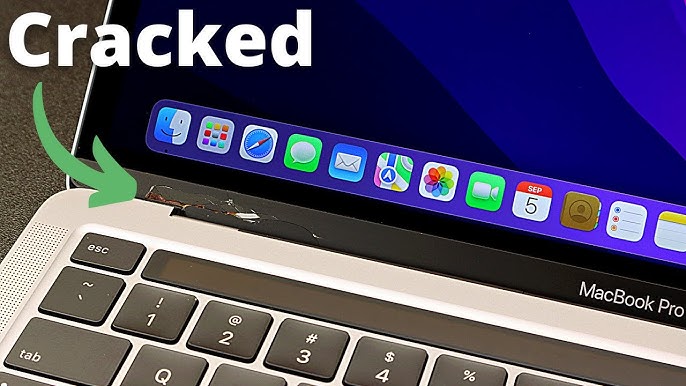
3. Additionally, pay special attention to the logo strip (the thin metallic area on the hinge that says MacBook Air or MacBook Pro). If this strip is broken or cracked, reject the device immediately, as this indicates possible structural damage and can be expensive to fix.
B. Display Check
1. Carefully inspect the screen for any cracks or damage.
2. To identify scratches: Lower the screen brightness all the way down and use your phone flash to reveal any hidden scratches.
3. To check for white spots or dead pixels: Open Safari, go to YouTube, and search for “Dead Pixel Test”. Play the video and pause at each solid color to check for any white spots or dead pixels.
4. Ensure the display is free from issues like a pink tint, pink edges, discoloration or cloudy patches.
5. Test brightness levels – it should go full bright without flicker
C. Check Original Accessories
1. Check if the seller has the original charger and cable. If not, use this as a negotiation point as Apple’s Macbook chargers are expensive to replace.
5. Inspect the Keyboard & Trackpad
A. Ensure all Keys work
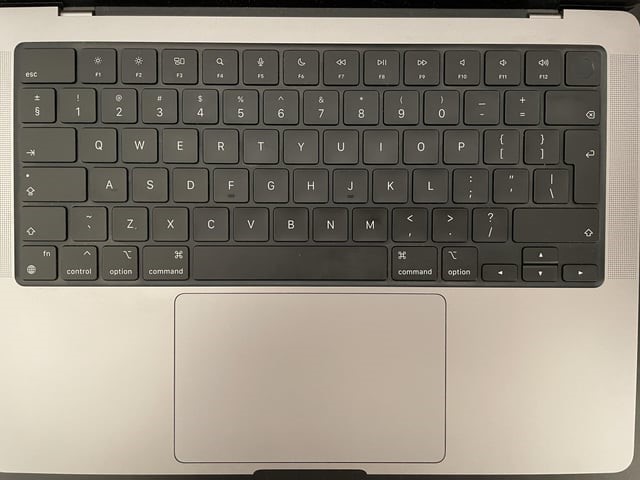
1. Open the Notes app and type:
“The quick BROWN FOX jumped over the lazy dog” (this sentence uses all alphabet letters).
2. Next, to check if all other keys register correctly. Go to Apple Menu > System Preferences > Keyboard.
3. Click Input Sources, then enable Show Input Menu in Menu Bar.
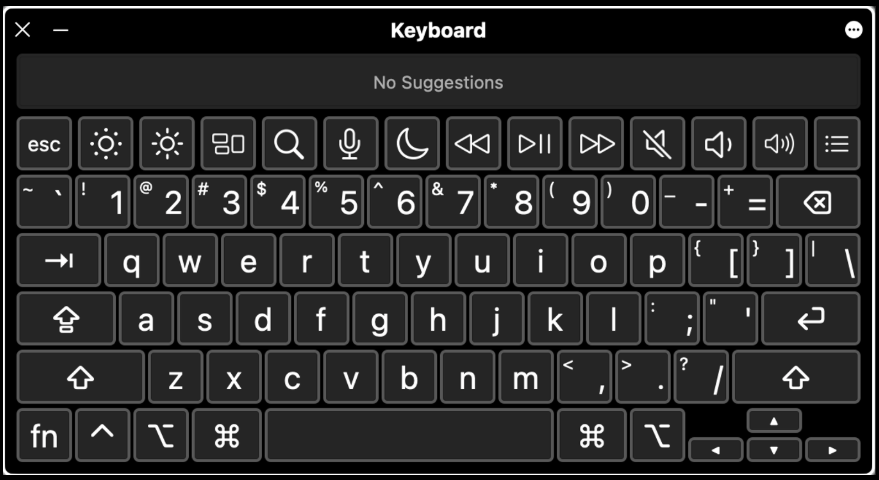
4. From the menu bar, select the following icon (or ABC Icon) and choose Show Keyboard Viewer.
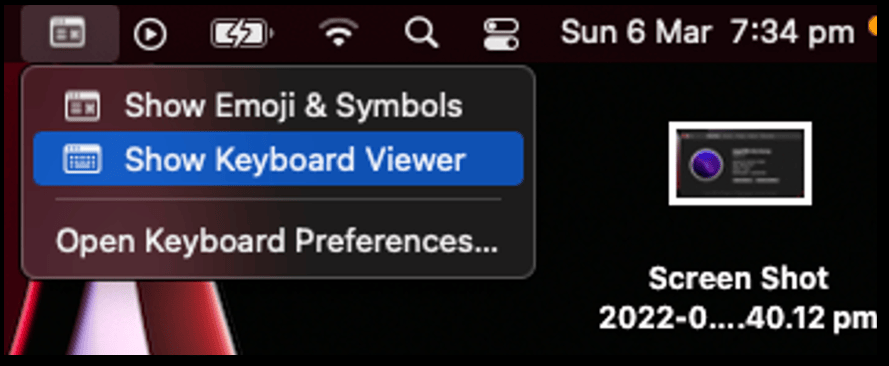
5. When the on-screen keyboard appears, run your fingers across each key line by line. Each key should turn red when pressed.
B. Test the Touch Bar
1. Go to System Preferences > Keyboard > Touch Bar Settings.
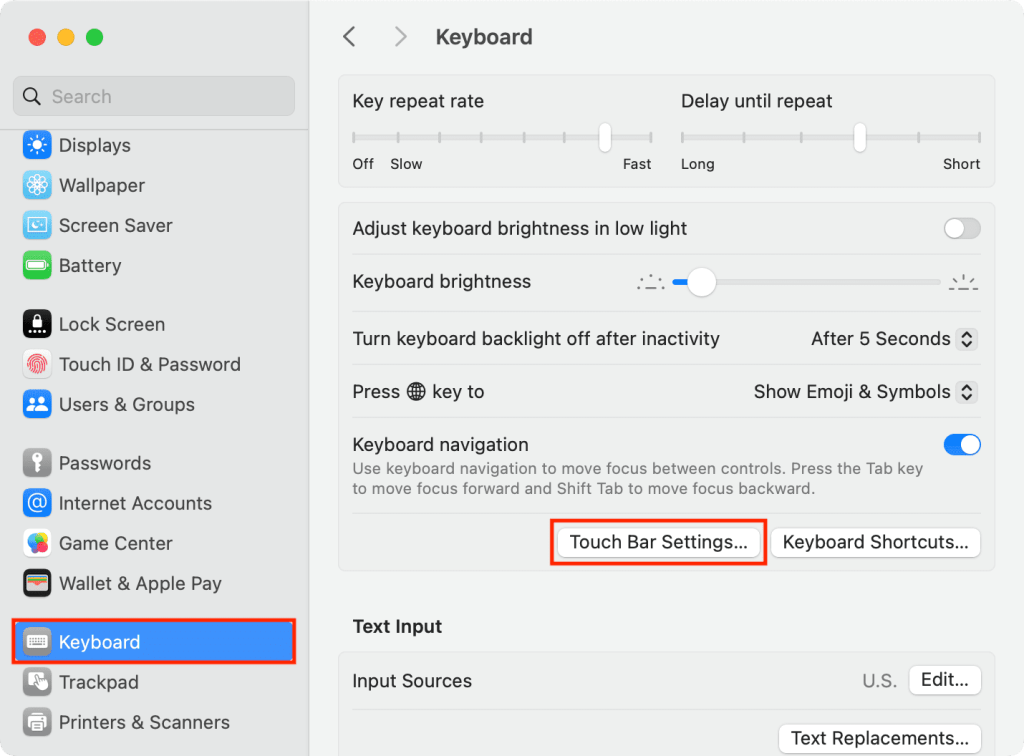
2. Under Touch Bar Shows, select F1, F2, etc. Keys, then press each key to confirm it highlights when touched.
C. Test Touch ID (Fingerprint Sensor)
1. To test Fingerprint: Settings > Touch ID & Password > Add fingerprint.
D. Test Keyboard Backlight
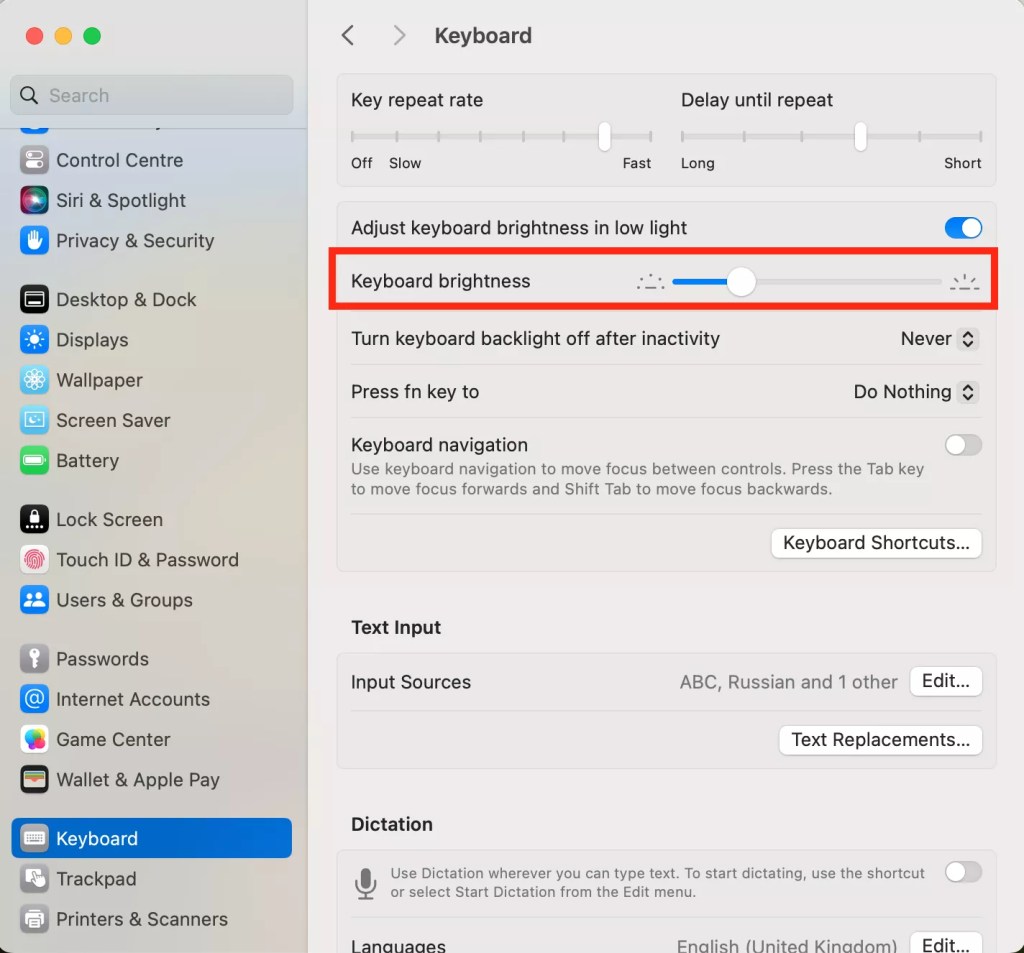
1. Go to System Settings > Keyboard.
2. Then adjust the Keyboard Brightness slider up and down to ensure the backlight is functioning properly.
E. Trackpad Testing
1. Make sure to test all corners of the trackpad to confirm it registers clicks properly.
2. For a detailed walkthrough of trackpad gestures and testing, refer to this video (watch from 13:30 to 14:51).
6. Inspect Speakers, Microphone, and Camera
A. Test Speakers
1. Open YouTube and play a song.
2. Go to Apple Menu > System Preferences > Sound.
3. Under the Output, adjust the Balance slider fully to the left and listen, then move it fully to the right.
4. If sound comes through both sides clearly, the speakers are in good condition. If you hear any distortion or crackling, use this as a negotiation point for a lower price.
5. Finally, return the Balance slider to the center.
B. Check Web cam & Mic
1. Go to launchpad > Photo Booth App > Switch to video mode > Record a short clip.
2. Play back the video to ensure both the camera quality and microphone audio are working properly.
7. Test Bluetooth & Wi-Fi
A. Test Bluetooth
1. Settings > Bluetooth > Pair your headphone/Mouse/Keyboard.
B. Test Wi-Fi
1. Settings > Wi-Fi > Connect to Wi-Fi.
2. Open Safari and test the WiFi speed (E.g. fast.com).
8. Inspect All Ports
1. Plug in a charger to verify charging works on all ports (where applicable).
2. Check all USB-C/Thunderbolt ports by plugging in an external drive or device.
3. Inspect the audio jack by plugging in headphones and checking sound output.
4. Examine and test all other ports (SD Card Reader/HDMI/etc)
9. Turn off FileVault on Mac
1. Choose Apple menu (Apple Icon on the Left) > System Settings, click Privacy & Security in the sidebar, then click FileVault (You may need to scroll down).
2. If it’s turned on, Click Turn Off.
3. Click Turn Off Encryption.
10. Ensure No iCloud Account is Connected & Disable Activation Lock
Note: For a detailed walkthrough regarding steps 1 to 6, refer to this video (watch from 7:53 to 8:55).
1. Click on the Apple logo, then click System Settings.
2. Click the sellers name in the sidebar.
3. Click iCloud on the right.
4. Click the See All button (or Show More Apps button).
5. Click Find My Mac, then click the button to turn off. Tell the seller to ENTER Seller’s Apple Account password when prompted.
6. Again, Click the sellers name in the sidebar> (Scroll down) Sign Out.
7. However, since Macs can have multiple user accounts, it’s a good idea to also go to System Preferences > Users and Groups and see if there is more than one user. (If there are, have the seller remove the other users so that you’re assured that one of them isn’t logged into iCloud).
8. Next, Go to Settings > Privacy & Security > (Scroll Down to the bottom) Profiles.
9. Make sure there are no work/school profiles here (If there are, tell the seller to remove it – Here is a Guide to refer).
11. Check if the device is subject to an MDM or DEP enrolment
It’s important to ensure the MacBook isn’t locked under Mobile Device Management (MDM) or enrolled in Apple’s Device Enrollment Program (DEP), Apple Business Manager (ABM), or Apple School Manager (ASM) as these are typically used by businesses and schools to manage their devices. A MacBook under MDM or DEP can be remotely controlled or even locked by the previous owner (Company / Institution), which could make it unusable for you.
In this instance, if the seller provides the original invoice (from Apple or an authorized reseller), it’s a strong indication that the device was purchased legally and is unlikely to be enrolled in MDM or DEP.
While there are a few ways to check if a MacBook is enrolled in MDM or DEP, the most reliable method is to erase the device and perform a clean macOS installation. However, I will still mention some of the tried and tested methods (though in most cases, they did not work) to verify MDM or DEP Enrolment.
A. Method 1
1. To check if there’s any MDM/DEP lock, open the application ‘Terminal’ from Applications (Click on ‘Utilities’ and then double click Terminal).
2. Remember to connect to Wi-Fi.
3. Click iCloud on the right.
4. type in the following command then press ‘return/enter’:
sudo profiles status -type enrollment
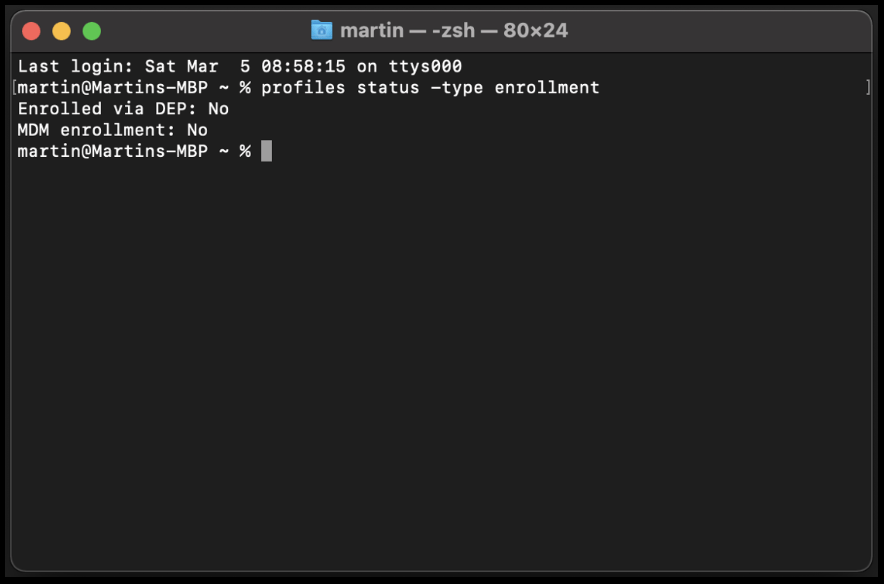
- If there is a ‘Yes’ answer for either, REJECT THE DEVICE.
- If you get a ‘No’ answer for both DEP and MDM enrolment, then proceed.
5. Type this next command then press return:
sudo profiles renew -type enrollment
6. Now, wait for 10secs, then go and check notifications (Click on Date & Time – on the Top Right)
7. If you get a similar notification like the one below, REJECT THE DEVICE.

- If you didn’t get a similar notification, then proceed.
6. Next type: sudo profiles validate -type enrollment & press return.
7. Then again type: sudo profiles status -type enrollment.
8. This time if it still says No, proceed. Otherwise, REJECT THE DEVICE (If there is a ‘Yes’ answer for either).
9. Close the Terminal
B. Method 2
10. Now to find an enrollment profile on Mac, open System Settings > General > Device Management.
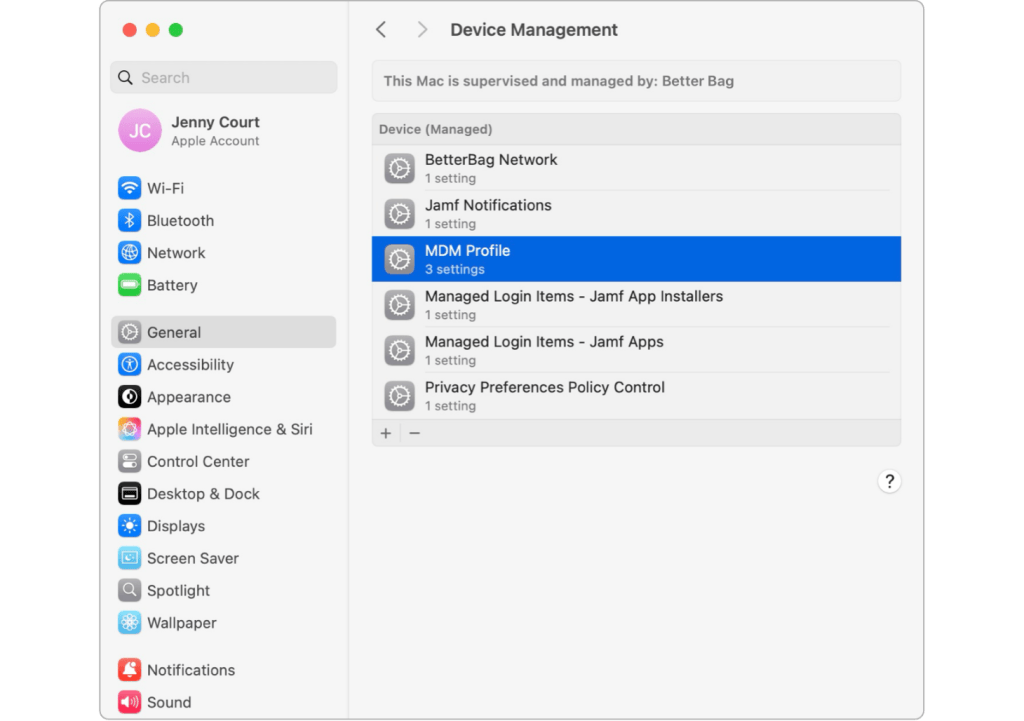
11. You can also find profiles in the system report on your Mac. Press and hold the Option key, then choose Apple menu > System Information to open the system report. In the sidebar, scroll to Software and click Profiles or Managed Profiles.
12. NOW, if you find “MDM Profile”, REJECT THE DEVICE.
C. Method 3
13. If there are no profiles listed, but you suspect MDM is still installed, run Activity Monitor and search for the process “mdmclient“.
14. NOW, if you find “MDM Profile”, REJECT THE DEVICE.
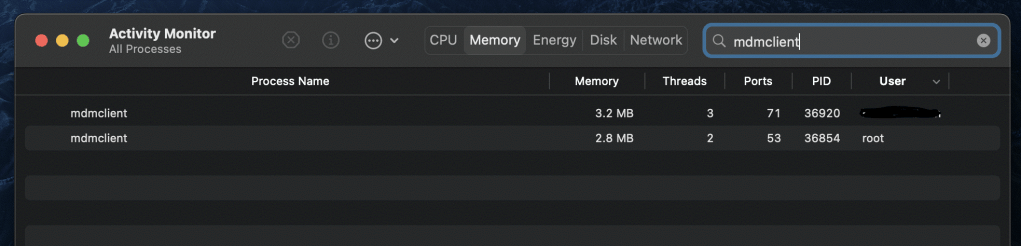
15. NOW, if you find “mdmclient”, REJECT THE DEVICE.
D. Method 4
16. If you receive notifications every 10 minutes or so, saying “Install MDM Profile for SomeCompany Inc.“, it is a definite sign of MDM Enrollment.
17. If it appears, REJECT THE DEVICE.
12. Run Apple Diagnostics
Running an Apple Diagnostics test helps identify any underlying hardware issues such as problems with memory, storage, battery, or logic board. It’s a quick way to ensure the MacBook’s internal components are functioning properly before you buy.
1. Ensure the Mac is powered off.
2. Press and hold the power button on your Mac.
3. Keep holding the power button, Until you see this screen below: (Then release the power button).
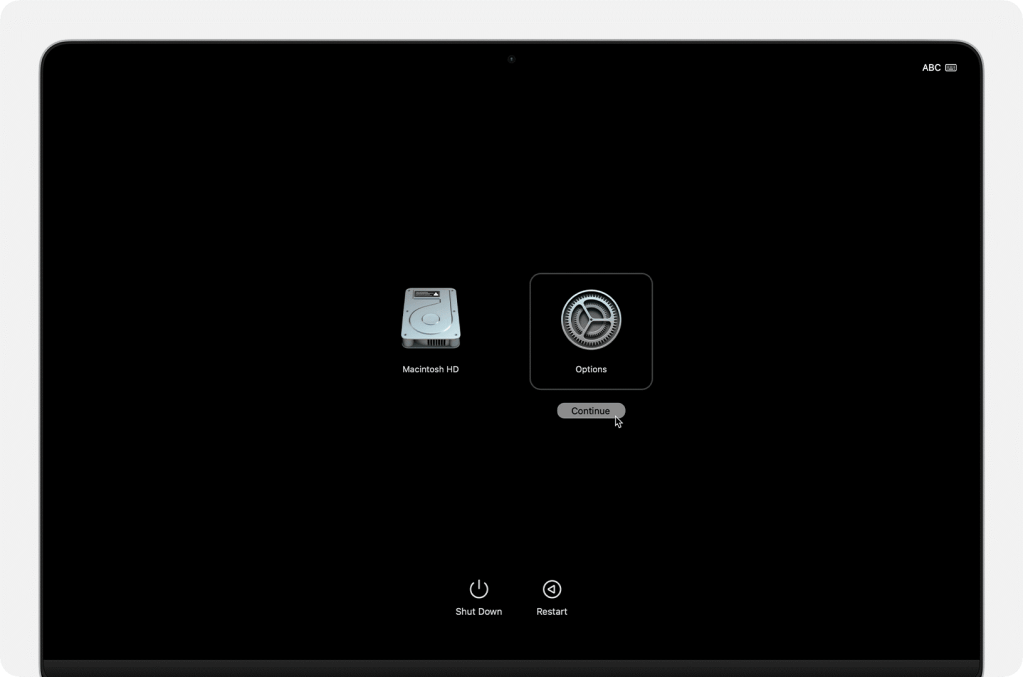
4. Then, Press and hold “Command (⌘) + D” on your keyboard (Keep holding it until it boots up again).
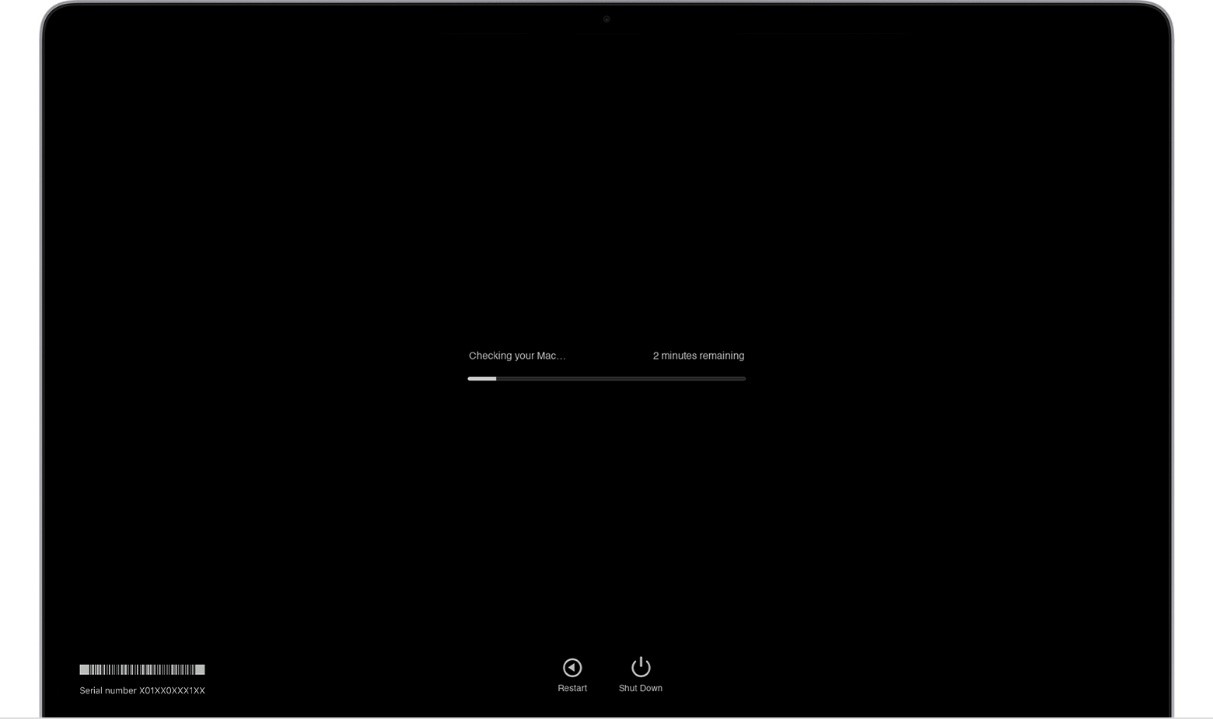
5. When testing is complete, Apple Diagnostics shows the results, including one or more reference codes.
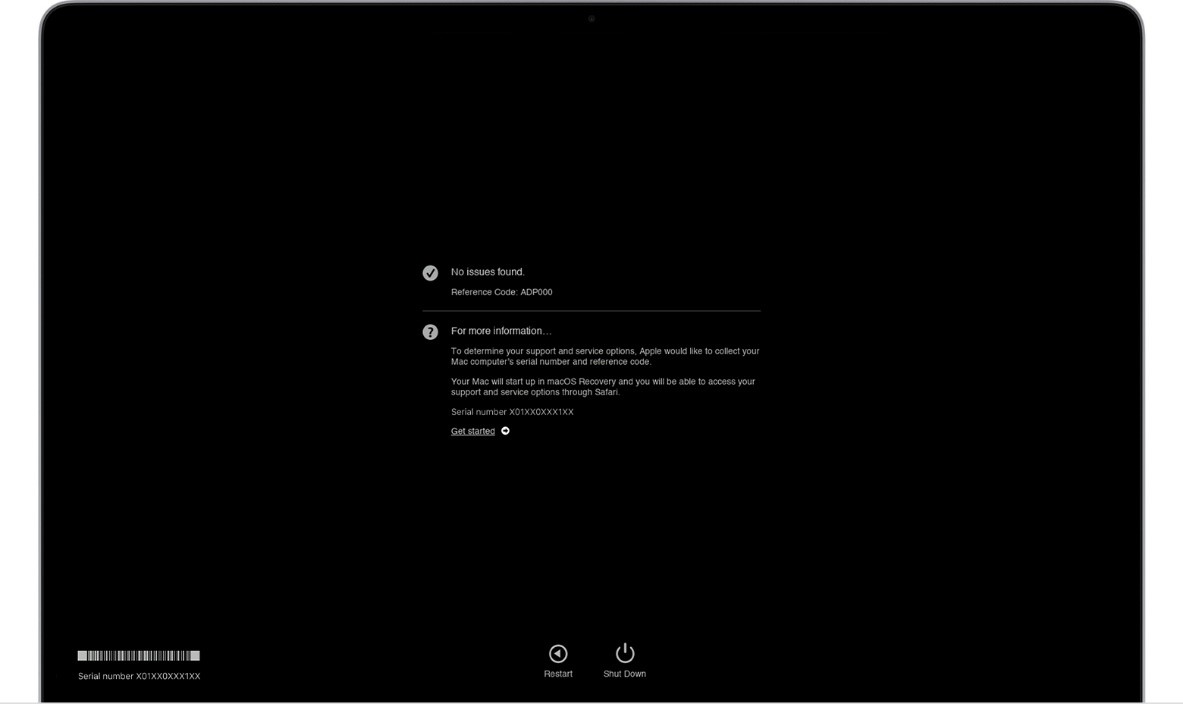
6. If you see Reference Code: ADP000, it means No issues found—the device is in good health.
7. If any other reference code appears, review what it indicates (List of Apple Diagnostics reference codes).
- If it’s a minor issue you can live with, use it as leverage to negotiate a lower price.
- If it points to a critical problem, REJECT THE DEVICE.
13. Test the Performance
If you have extra time with the seller (around 20–30 minutes, in addition to the 30–40 minutes required for a full reset), it’s a good idea to run a performance test.
1. Download and Run Cinebench24 OR CPU Geekbench to check processing power.
2. Observe the performance during the test.
3. If the MacBook shuts down unexpectedly during the test, this indicates a serious hardware issue, REJECT THE DEVICE.
14. Factory Reset the MacBook
Before completing the purchase, it’s highly recommended to erase the MacBook and reinstall macOS in front of the seller. This ensures the device is free from any previous data, MDM/DEP enrollment, or hidden restrictions. The process usually takes 30–40 minutes, depending on your internet speed, so plan for this extra time. Make sure you’re connected to a Wi-Fi network with internet access, as you won’t be able to reinstall macOS or verify enrollment status without it.
If using macOS Ventura (macOS 13) or later:
1. From the Apple menu (Apple Logo) in the corner of your screen, choose System Settings.
2. Click General in the sidebar.
3.Scroll down on the right and click Transfer or Reset.
4.Click Erase All Content and Settings.
If using macOS Monterey (macOS 12):
1. From the Apple menu (Apple Logo) in the corner of your screen, choose System Preferences.
2. From the System Preferences menu in the menu bar, choose Erase All Content and Settings.
- An erase assistant opens. Follow the onscreen instructions.
- When asked to sign in with your administrator credentials, enter the password that you use to log in to your Mac. (You might be asked to enter your Apple Account password so that your Mac can sign out of Find My)
- After you click the Erase All Content & Settings button to confirm that you want to proceed, your Mac restarts and briefly shows a black screen or progress bar.
- During the process, you might be asked to select a Wi-Fi network. To select a Wi-Fi network, use the Wi-Fi menu in the upper-right corner of the screen.
- Your Mac then needs to activate.
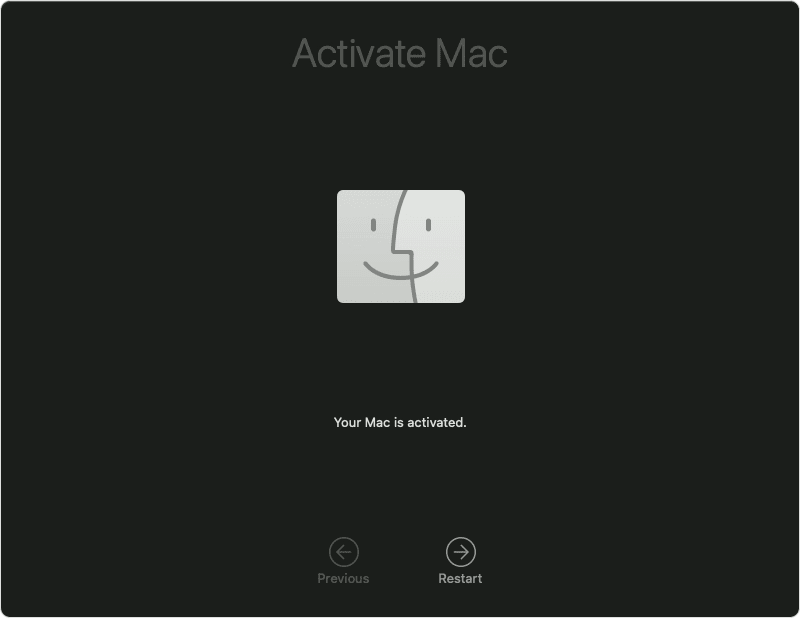
- Once the above screen appears. Click on Restart.
- During the process if the below screen appears, REJECT THE DEVICE. Say No to the seller.
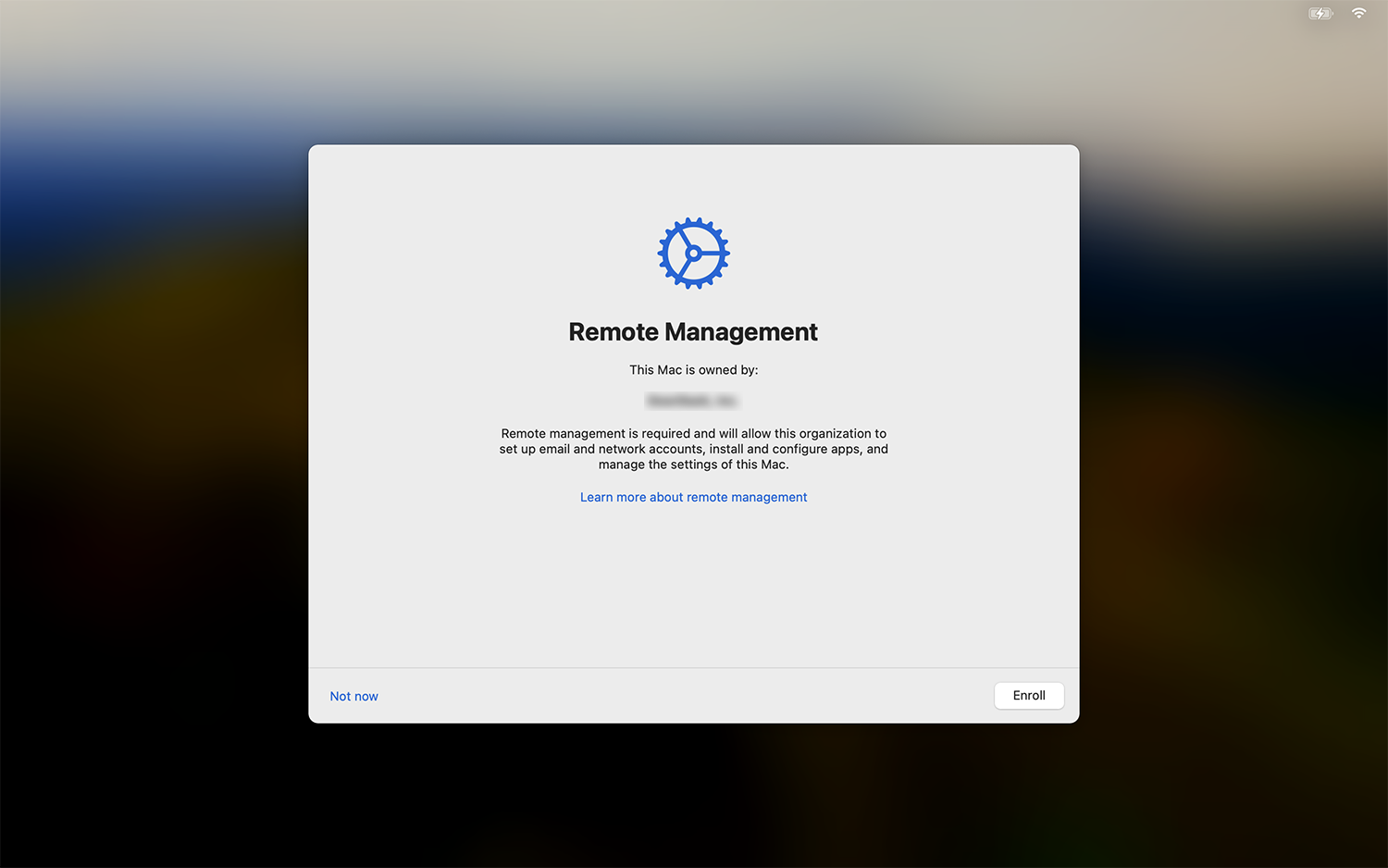
- If no such prompt appears when the device boots to the Welcome/Setup screen, that’s a positive sign.
- Complete the setup, and you can now proceed with the purchase.
Conclusion
Buying a used Apple Silicon MacBook can be a smart move if you know what to check. Always verify ownership, health, and performance before paying. A little diligence upfront can save you from costly mistakes later.




Leave a Reply